AI book cover generator
AI book cover maker
Make a cover that still works when it is 120 pixels wide.
A cover maker is a layout decision before it is an image decision. Decide what the reader must see at thumbnail size, give the title a quiet place to land, and only then ask a model for the artwork.
Checked:
✓Title-first cover direction✓Series and genre consistency✓Wrap, spine, and DPI checks nearby
Book media prompt lab
Book media prompt lab
Build a production-ready prompt before you spend a generation credit. The preview is free and runs in your browser.
Add a title, choose a direction, then build the prompt.
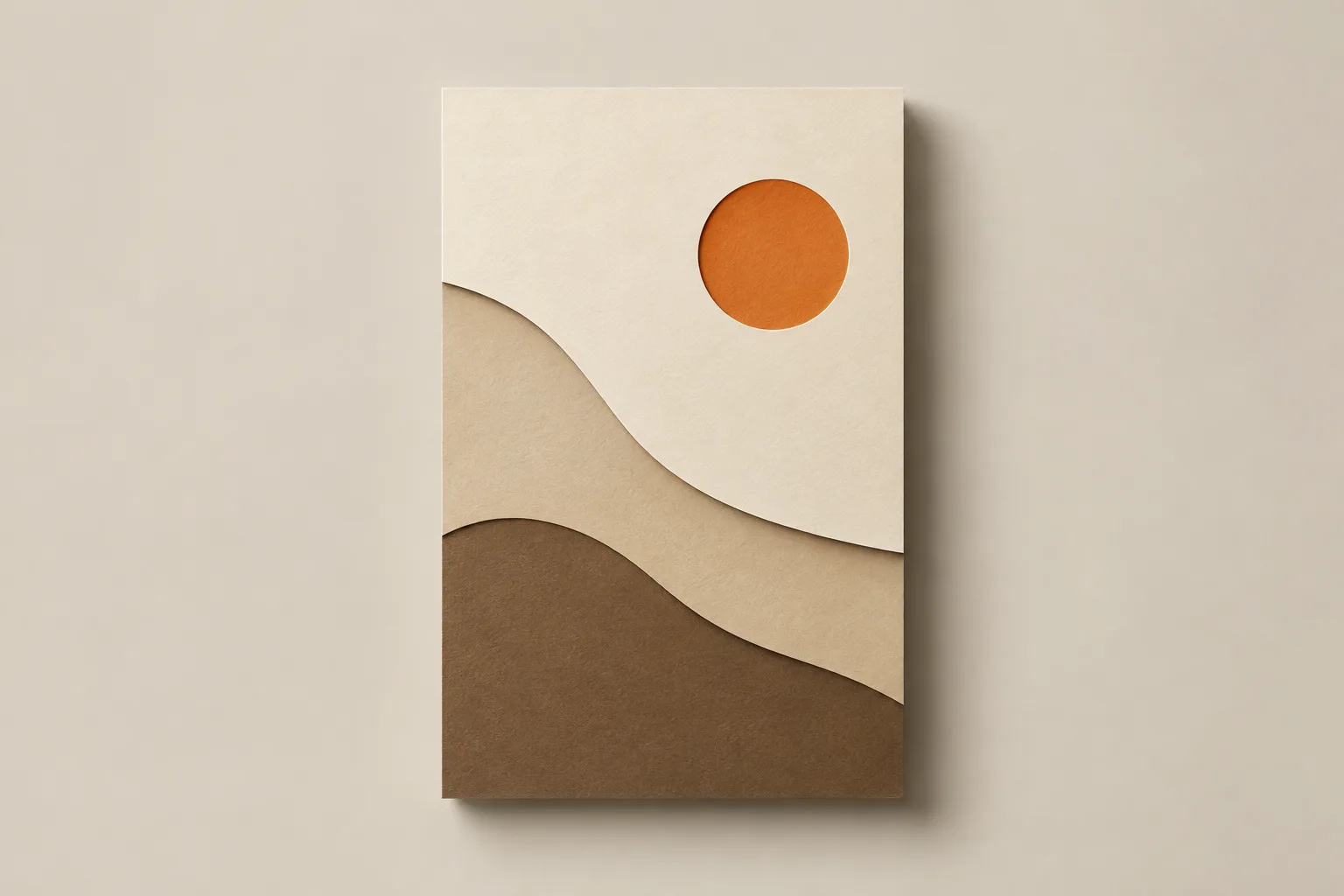
Maker, generator, and designer are different jobs
A generator produces an image. A maker assembles the cover: art, title, subtitle, author, series mark, spine, back cover, and the export file. A designer makes editorial judgments about hierarchy and category conventions. Most authors need all three, but they do not need to happen in one click.
This page focuses on the maker layer. The prompt lab helps you describe the image; the cover studio keeps the generated image attached to a book; the KDP calculator checks the wrap. That separation makes it easier to replace one part without rebuilding the whole cover.
| Job | Question | Best next step |
|---|---|---|
| Generator | What should the cover show? | Build a prompt and generate a draft |
| Maker | Where do the title and author go? | Set the type hierarchy before final art |
| Wrap | Does the file fit the trim and page count? | Run the KDP cover calculator |
Set the title hierarchy before you prompt
Write the title, subtitle, and author line as plain text first. Decide which one is largest, which one can break across two lines, and which one should disappear at thumbnail size. A long subtitle often needs to move to the back cover or the store description, not shrink into unreadability on the front.
Once the hierarchy is clear, the prompt can reserve the right kind of space. A title-first cover asks for a large quiet field. A series-first cover asks for a consistent frame and a small series mark. A character-first cover asks for a clear face or silhouette and a title that sits below or above it.
- One primary title, one optional subtitle, one author line
- Test the longest word at thumbnail size
- Decide where the series mark lives before generating
Keep a series recognizable without repeating the same image
Series covers need a family resemblance: the same type treatment, the same margin, a recurring color or frame, and a subject that changes book to book. The mistake is to reuse the same composition until the covers look like duplicates. A better system varies the subject and keeps the frame stable.
The prompt lab includes a direction field for this reason. Use the same direction across a series, change the subject and season, and keep the title zone in the same place. The KDP wrap changes with page count, so recalculate each book's spine even when the cover system is shared.
Export the cover without losing the type
Generated art usually should not contain the final title. Models can imitate lettering, but they often misspell, crowd, or distort it. Add the title in a layout tool or in the book workspace after generation. That keeps the words editable and makes it possible to fix a typo without regenerating the image.
Export the front cover and the full wrap as separate decisions. The front cover needs a clean 2:3 image. The full wrap needs bleed, spine, back cover, and a barcode zone. Check the image at 300 DPI at its final print size, not at the size it appears in the browser.
A maker workflow you can repeat
Start with the book's promise, write the title hierarchy, choose one genre signal, generate two or three directions, and compare them at thumbnail size. Pick the direction that survives the small view, then edit the art rather than starting over. Add the type, check the wrap, and export a print file and a store image.
This is slower than one-click generation, but it produces a cover you can defend. The image is not the whole cover; the cover is the image plus the type plus the file geometry.
- Two or three directions, not twenty
- Choose at thumbnail size
- Edit the winner instead of regenerating from zero
- Add type after the image is stable
FAQ
Frequently asked questions
What is the difference between a cover maker and a cover generator?
A generator creates the image. A maker assembles the image, title, author, spine, back cover, and export file. ShipMyBook keeps those steps together so the cover stays attached to the book.
Should the AI model draw the title text?
Usually no. Models can produce attractive lettering, but they also misspell and distort words. Generate the art without text and add the title in a layout tool or the book workspace so the words stay editable.
How do I keep a series looking consistent?
Keep the type treatment, margins, and one recurring color or frame stable. Change the subject and season. Recalculate the spine for each book because the page count changes the wrap.
What size should the generated cover be?
Generate a 2:3 portrait image with enough resolution for the final print size. The front cover is only one panel; the full wrap also needs the back cover, spine, bleed, and barcode zone.
Can I make a cover if I have no design experience?
Yes, if you start with a clear title hierarchy and a genre promise. The prompt lab turns those choices into a usable prompt, and the calculator checks the geometry. You still need to review the result.
Does ShipMyBook guarantee the cover will be accepted by KDP?
No. The tools check geometry and file risks, but KDP makes the final acceptance decision. Keep your source files and be ready to correct a specific rejection.
Was this publishing guide or tool helpful?
Make the cover from a clear promise.
Build the prompt, generate a draft, and keep the title editable. The wrap calculator is one click away when the art is ready.